Order Rules
Order Rules
Control which Shopify orders sync to Odoo and how they're created. Orders must match ALL selected conditions to sync.
Quick Setup
- Go to Order Settings tab in the Synco app
- Enable the Auto Order Sync toggle
- Configure your rules below
- Save
Rule Groups
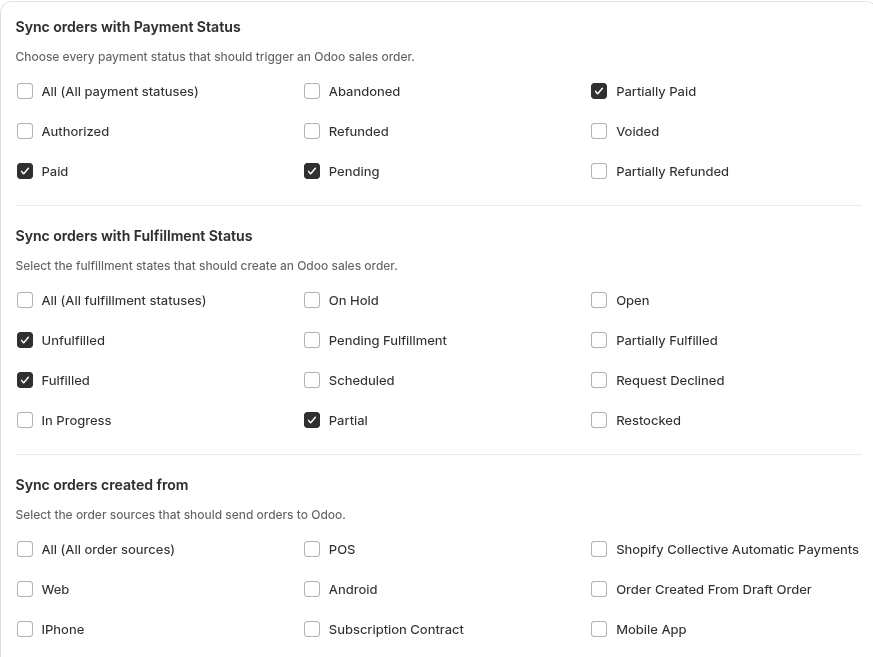
1. Payment Status
Choose which payment statuses should sync to Odoo:
- All: Select all at once
- Paid: Fully paid orders
- Pending: Pending payment
- Partially Paid: Partially paid orders
- Authorized: Payment authorized but not captured
- Abandoned: Abandoned checkout orders
- Refunded: Fully refunded orders
- Partially Refunded: Partially refunded orders
- Voided: Voided payment orders
2. Fulfillment Status
Choose which fulfillment statuses should sync:
- All: Select all at once
- Unfulfilled: Not fulfilled yet
- Fulfilled: Completely fulfilled
- Partial: Partially fulfilled
- In Progress: Currently being processed
- On Hold: Fulfillment on hold
- Pending Fulfillment: Awaiting fulfillment
- Scheduled: Scheduled for future fulfillment
- Open: Open orders
- Partially Fulfilled: Partially fulfilled
- Request Declined: Fulfillment request declined
- Restocked: Items have been restocked
3. Order Source (Optional)
Filter orders by where they came from:
- All: All sources
- Web: Online web store
- POS: Point of Sale
- iPhone / Android: Native mobile apps
- Mobile App: Mobile app orders
- Subscription Contract: Subscription orders
- Shopify Collective Automatic Payments: Collective payments
- Order Created From Draft Order: Draft orders
Custom Source: Type a source name and click "Add" to include any custom order source.
4. Include Shopify Fields
Add extra details to Odoo sales orders:
- Note Attributes: Include order note attributes as a field in the Odoo order
- Order Tags: Include Shopify order tags in the Odoo order
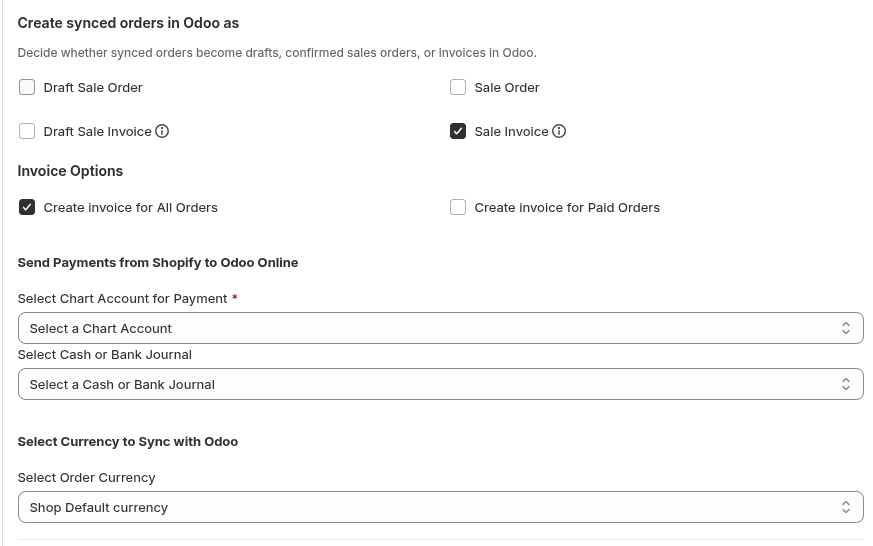
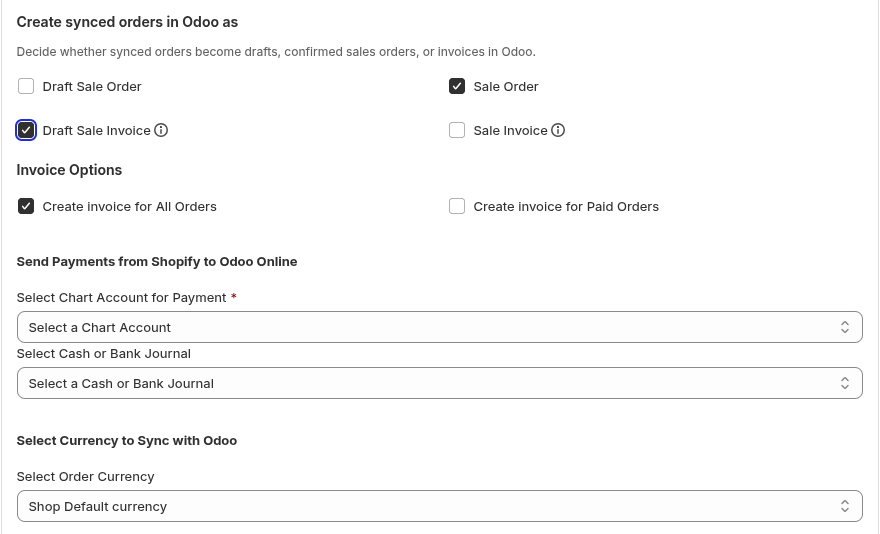
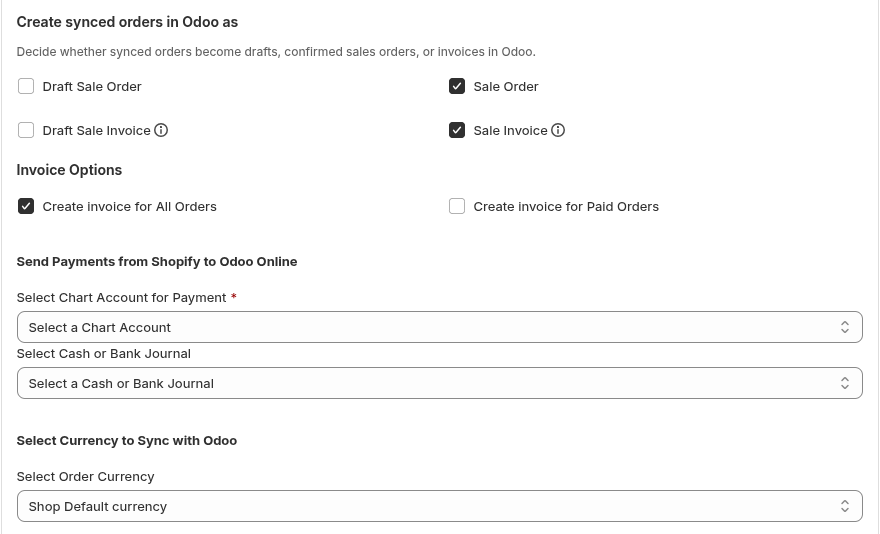
5. Create Orders in Odoo As
Choose what gets created in Odoo when orders sync:
Sale Order Options:
- Draft Sale Order: Creates an unconfirmed sale order (no invoices)
- Sale Order: Creates a confirmed sale order (can add invoices)
Invoice-Only Options:
- Draft Sale Invoice: Creates only a draft invoice (no sale order)
- Sale Invoice: Creates only a confirmed invoice (no sale order)
Combined Options:
- Sale Order + Draft Invoice: Creates a confirmed sale order and a draft invoice
- Sale Order + Sale Invoice: Creates a confirmed sale order and a confirmed invoice
Sale Order Only:

Sale Invoice Only:
Sale Order + Draft Invoice:
Sale Order + Sale Invoice:
Invoice Settings:
- Invoice for: All Orders or Paid Orders only
- Sales Journal: Select the Odoo journal for invoices
- Income Account Mode: Fixed income account or use Odoo product category accounts
- Income Account (Chart Account): Select the account for invoice payments
- Payment Registration: Register in a single journal or map Shopify payment gateways to specific Odoo journals
- Currency: Shop default currency or customer presentment currency
6. Order Sync Date Range
Choose the date range of Shopify orders to sync into Odoo. Orders outside this range are skipped. Changing these dates won't affect already synced orders.
- Sync Orders From: Set the start date for order sync
- Sync Orders To: Set the end date for order sync

7. Order Prefix (Optional)
Add a custom prefix to Odoo order numbers (e.g., "WEB-" → "WEB-0001"). Leave blank for default Odoo numbering.

8. Shopify Order Number Sync
When enabled, uses the Shopify order number as the Odoo order number for easy cross-referencing.

9. Refund Order Sync
When enabled, a Shopify refund creates a credit note in Odoo, restores stock for refunded items, and pays the credit note back out: one outgoing payment per Shopify gateway from the journal that gateway maps to. An order paid 10.00 by gift card and 20.10 by PayPal and fully refunded gets 10.00 out of the gift-card journal and 20.10 out of PayPal. Each journal pays back at most what it took in on the invoice; the rest stays open on the credit note. Safe to retry: what a journal already paid back is subtracted. Applies when payment registration is map gateways to journals, no Use Specific Journal rule matched the order, and the invoice is paid in the configured company. Credit notes you create in Odoo yourself are not paid. When enabled, Shopify refunds automatically:
- Create credit notes in Odoo
- Restore stock for refunded items in Odoo inventory

10. Cancel Sale Order
When enabled, cancelling an order in Shopify will also cancel the linked Sale Order in Odoo.
11. Map Orders to Single Odoo Customer
When enabled, orders are mapped to a single Odoo customer instead of creating individual customer records.

- Map Guest Orders Only: Only guest/anonymous orders are mapped to the single customer. Orders from logged-in customers still create individual records.
- Map All Orders: All orders (including logged-in customers) are mapped to one Odoo customer.
- Odoo Customer Email: Enter the email of the Odoo customer to map all orders to.
This is useful for POS sales or anonymous storefronts where individual customer records aren't needed.
12. Sync Payment Method to Odoo
When enabled, the Shopify payment gateway is synced as an Odoo Payment Journal. If no matching journal exists, one is created automatically with the format "Card (Gateway)".
13. Tax Mapping
Map each Shopify tax line (title and rate) to an Odoo sale tax. Suggest with AI fills the empty rows with an existing Odoo tax of the same rate, aware of tax-included pricing; see Tax mapping suggestions. Tax handling is version-aware (tax_id on older Odoo, tax_ids on newer).
14. Sync B2B Orders
When the buyer belongs to a Shopify B2B company, the Odoo sale order is booked against the company's contact and carries the purchase order number as customer reference.
15. Invoice on Payment
An optional step that creates a down payment invoice when the order is paid and the final invoice on delivery. You can also choose to invoice the customer itself rather than a billing contact.
Advanced Rules
Advanced rules act on orders that match all of a rule's conditions. Open Advanced Rules on the Orders page and click Add Rule.
Conditions: Order Source, Location, Fulfillment Location, POS Location, Payment Method, Shipping Method, Tax Name, Date, Customer Email, Customer Tag, Order Tag, Customer Company, Merchant Business Entity, Event Type, Odoo Order Status, Shopify Order Status, Shipping Country, Billing Country, Order Attribute (is, is not, exists, not exists).
Actions:
- Skip Order (do not sync)
- Use Specific Journal for the payment
- Map to Odoo Tax / Map to Shopify Tax
- Set Delivery Carrier on the sale order. Suggest carrier rules drafts these from your real shipping methods; see Carrier rule suggestions
- Set Pricelist on the sale order, optionally also on the Odoo customer for that company. Refused (logged, order still created) if the pricelist is archived, belongs to another company, or has another currency. Line prices stay the Shopify prices
- Set Company: create the order in a specific Odoo company. Orders can also be routed by Merchant Business Entity
- Send Notification: a comment (notifies tagged users) or an internal note on the sale order, with variables for order name, customer, email, status, total, and event type
- Assign Team / Person: salesperson or sales team, re-evaluated on every order update. Without a rule, a new order gets the salesperson already on the Odoo customer
- Schedule Activity: to-do, call, meeting, or upload, due some days later
- Add Shopify Tag when the Odoo order reaches a status
Skip rules also decide what bulk sync enqueues.
Describe the Rule with AI
Type the rule as a sentence (for example Skip orders tagged wholesale or Use the PayPal journal when the gateway is PayPal) and click Generate. The AI drafts the conditions, action, and target from your own Odoo lists and opens them for review with a confidence label. Nothing is saved until you press Save rule. See Order rules from a sentence.
How It Works
Orders sync only if they match ALL selected conditions:
- Payment status (at least one must be selected)
- Fulfillment status (at least one must be selected)
- Order source (if specified)
- Date range (if configured)
Example: If you select "Paid" + "Unfulfilled" + "Web", only paid, unfulfilled web orders will sync. An order that is "Paid" + "Fulfilled" + "Web" would NOT sync because it doesn't match the "Unfulfilled" condition.
Important
Orders must match all selected conditions to sync, and no skip rule may match. If an order doesn't match, it will be flagged as ineligible in the Order Sync table with a tooltip explaining why. Custom and productless lines are placed on a shared placeholder product so the sale order can still be confirmed and invoiced; Shopify order edits update the Odoo lines without duplicating them or overwriting a newer Odoo state.
Support
If you need help with order rules:
- Email: support@techspawn.com
- Documentation: Check our help center for detailed guides