Operations Dashboard
The Operations Dashboard provides comprehensive tracking and monitoring of all synchronization activities. It displays real-time status of all sync jobs with filtering, search, and automated email reporting.
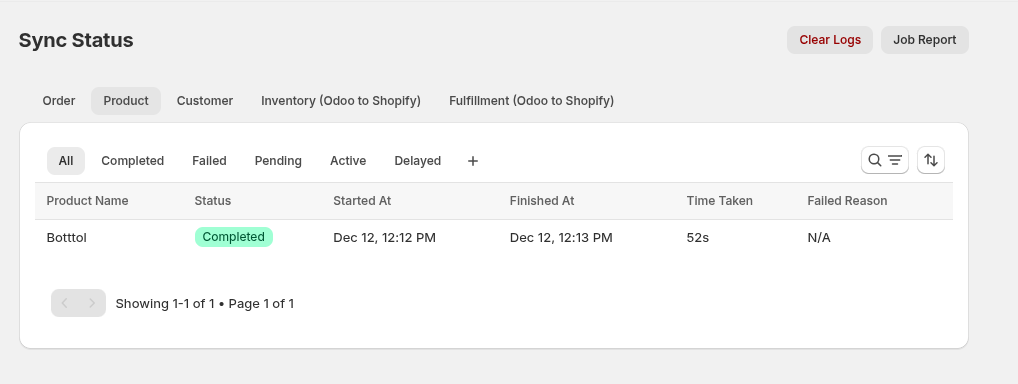
Overview
The Operations Dashboard is Synco's monitoring and tracking system that provides real-time visibility into all synchronization jobs. It shows the status of every sync operation — products, orders, customers, inventory, and fulfillments — with detailed job information, performance metrics, and filtering capabilities.
Statistics Cards
The top section displays real-time aggregate statistics. Click any card to filter the table by that status:

| Stat | Description |
|---|---|
| Total Operations | Total number of sync jobs across all queues |
| Completed | Successfully completed jobs (with percentage) |
| Failed | Jobs that encountered errors (with percentage) |
| Waiting | Jobs queued and waiting to start (with percentage) |
| Active | Jobs currently running (with percentage) |
| Delayed | Jobs scheduled but delayed (with percentage) |
Nothing Synced
A stock or product run that updated nothing is not reported as success. It is shown as Nothing synced with the reason and the fix: no Shopify products linked to Odoo, every linked product left out by the category filter, no linked product stocked at a mapped Shopify location, no Odoo stock at the mapped locations, or all stock zero with zero-stock skipping on.
Sync Health
The Check sync health button on the home page groups the last 15 days of problems by cause with the fix for each. See Sync health. The same numbers can be read by Shopify Sidekick.
Sync Queues Tracked
The dashboard monitors all Synco job queues:
Order Sync
- Order Create Queue: New order creation from Shopify to Odoo
- Order Update Queue: Order update synchronization
Product Sync
- Product Sync (Shopify to Odoo): Product sync from Shopify to Odoo
- Product Sync (Odoo to Shopify): Product sync from Odoo to Shopify
- Images Sync Queue: Dedicated image synchronization
Customer Sync
- Customer Create Queue: Customer creation from webhooks
- Customer Update Queue: Customer update synchronization
Inventory Sync
- Inventory Sync Queue: Stock level synchronization
- Periodic Sync Queue: Scheduled inventory sync jobs
Fulfillment Sync
- Fulfillment Sync Queue: Fulfillment status synchronization between Odoo and Shopify
Setup and Suggestions
- Preflight Queue: the first-sync check scan
- AI Product Match Queue, Carrier Rule Suggest Queue, Metafield Mapping Suggest Queue: AI suggestion jobs
- Payout Sync Queue and B2B Pricelist Queue
Other
- Clear Synco Data Queue: Data clearing operations
- Dashboard Report Queue: Automated email report jobs
Job Information
Each job entry displays:
| Field | Description |
|---|---|
| Job Code | Unique identifier/name for the job |
| Status | Current state with visual badge (Completed, Failed, Waiting, Active, Delayed) |
| Queue Name | Which sync queue the job belongs to |
| Created Date | When the job was enqueued |
| Executed Date | When the job started processing |
| Finished Date | When the job completed |
| Source | Webhook, Event, or both, for update jobs (see Shopify Events) |
| Messages | Error details if the job failed; for Nothing synced, the reason and the fix |
| Log | The job's own log lines, kept 15 days |
| Retry | Re-run a failed job after fixing the cause |
Filtering and Search
Quick Filter Tabs
- Click on status cards (Completed, Failed, Waiting, Active, Delayed) to filter by status
Date Range Filter
- Open the date filter modal to set a start and end date
- Only jobs within the selected date range will display
- Use "Apply" to set and "Clear" to reset the date filter
Queue Filter
- Filter by specific queue name from the dropdown (Order Create, Product Sync, Customer Create, Inventory Sync, etc.)
Text Search
- Search by job code, ID, or queue name
- Real-time filtering as you type
Pagination
- Default page size: 50 jobs (max 100)
- Navigate with Previous/Next buttons
- Shows total count and current page
Clear Logs
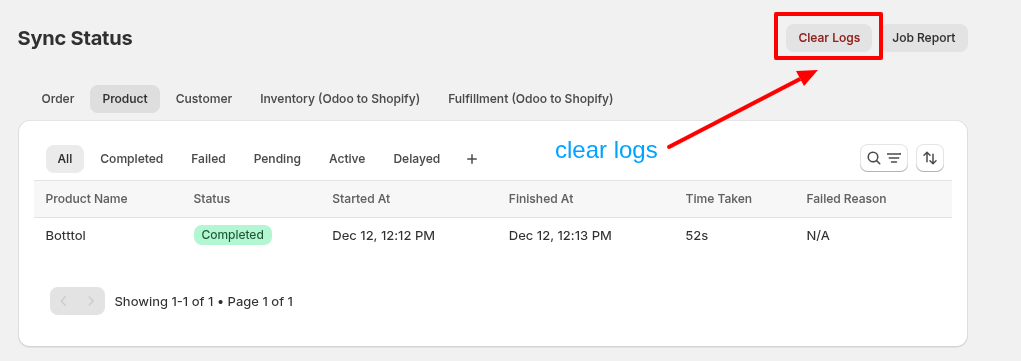
- Click "Clear Logs" to remove all jobs for your shop across all queues
- Confirmation dialog prevents accidental deletion
- Clears completed, failed, waiting, active, and delayed jobs
Dashboard Reports (Email)
Set up automated email reports for your sync activity:
Email Verification
- Enter your email address in the Dashboard Report section (in Advanced Settings)
- Click "Send Verification" to receive a verification link
- Verification link expires in 30 Minutes
- Reports are only sent to verified email addresses
Report Frequency
Configure how often you receive reports:
| Frequency | Interval |
|---|---|
| Daily | Every 24 hours |
| Every 2 Days | Every 48 hours |
| Weekly | Every 7 days |
| Every 15 Days | Every 15 days |
| Monthly | Every 30 days |
Report Features
- Automatic scheduling based on your selected frequency
- One report job per shop (prevents duplicates)
- Reports include comprehensive sync activity summary
- Access the dashboard via a secure token-based link (no Shopify login required for team members)
How to Use
- Navigate to the Operations Dashboard in the Synco app
- Review the statistics cards for an overview of sync health
- Click a status card to filter jobs by that status
- Use search, queue filter, or date range to find specific jobs
- Review failed jobs and their error messages for troubleshooting
- Clear old logs periodically to keep the dashboard clean
Best Practices
- Monitor Failed Jobs: Regularly check for failed jobs, read the job log, fix the cause, then Retry
- Treat "Nothing synced" as a signal: it points at a link, filter, or location-mapping problem
- Clear Old Logs: Periodically clear completed and failed logs to improve dashboard performance
- Set Up Email Reports: Configure automated reports for proactive monitoring
- Check Queue Health: Ensure no queues have a large backlog of waiting or delayed jobs
- Review Job Duration: Identify slow sync operations that may indicate issues
Support
If you need help with the dashboard:
- Email: support@techspawn.com
- Documentation: Check our help center for detailed guides