Manual Product Mapping
Manually link Shopify products to Odoo products by searching and selecting matching items across both systems.
Overview
Manual Product Mapping allows you to manually link Shopify product variants to their corresponding Odoo products. This is useful when products already exist in both systems and need to be connected without re-syncing, or when you want precise control over which products are linked.
Manual mapping is available on all plans.
Prerequisites
Before using Product Mapping, ensure:
- Odoo Server Configuration: Server URL, database, and credentials are configured
- Company Configuration: A company is selected in app settings
- Location Mappings: Shopify locations are mapped to Odoo warehouses
Accessing Product Mapping
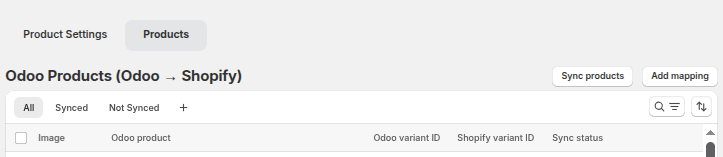
- Navigate to the Products tab in the Synco app
- You will see the product list with All, Synced, and Not Synced filter tabs
- Click the "Add mapping" button at the top-right of the product list
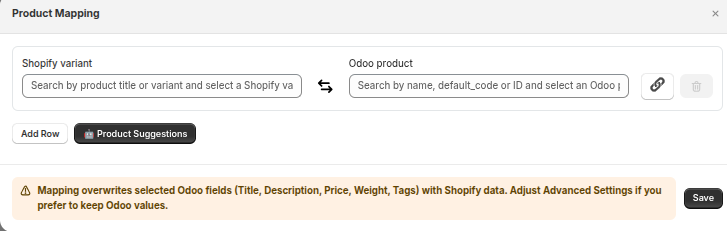
- A Product Mapping popup modal will open
Creating a Mapping
Step 1: Add a Mapping Row
Click "Add Row" to create a new mapping row. Each row maps one Shopify variant to one Odoo product.
Step 2: Select a Shopify Variant
In the Shopify variant autocomplete field:
- Search by product title, variant name, SKU, or barcode
- The search is debounced (500ms) for smooth typing
- Select a variant from the dropdown results
- If the selected variant already has an Odoo mapping (via metafield), the Odoo side is auto-filled
Step 3: Select an Odoo Product
In the Odoo product autocomplete field:
- Search by product name, internal reference (default_code), or numeric ID
- Results appear instantly as you type
- Select the matching Odoo product from the dropdown
Step 4: Save the Mapping
Click the Link icon (chain link) next to the row to save the mapping. This writes the Odoo product ID to the Shopify variant's custom.odoo_ids metafield.
Mapping Row Actions
Each mapping row provides three action buttons:
| Action | Icon | When Available | What It Does |
|---|---|---|---|
| Save/Link | Chain link | When both sides are selected | Saves the mapping to Shopify metafield |
| Unlink/Clear | Broken chain | When mapping is already saved | Removes the Odoo link (deletes metafield value) |
| Delete Row | Trash | Always (except last row) | Removes the row from the UI |
At least one mapping row is always present — the last row cannot be deleted.
Status Indicators
Below the Odoo field, status indicators show the current state:
- "Mapped to [product name]" — Mapping is saved and matches the current selection
- "Product changed" — The Odoo selection was changed from the saved mapping (unsaved changes)
- "Auto matched" — The Odoo product was auto-filled from an existing metafield or AI suggestion
Mapping Summary
Above the mapping rows, a progress summary displays:
- X mapped — Rows with successfully saved mappings
- Y pending — Rows with unsaved changes that need to be saved
Conflict Resolution
If the Odoo product you select is already mapped to a different Shopify variant:
- The old mapping is automatically unlinked first
- The new mapping is then saved
- This prevents duplicate mappings and ensures each Odoo product maps to only one Shopify variant
Bulk Save
All mapping rows can be saved at once. When saving in bulk:
- Rows with both Shopify and Odoo selections are saved as mappings
- Rows with only a Shopify selection (Odoo cleared) are processed as deletions (unlinking)
- The operation is atomic per row — individual failures don't block other rows
Searching Products
Shopify Product Search
- Searches by: product title, variant name, SKU, barcode
- Returns variant-level results with image, display name, price, and sync status
- Shows whether a variant is already mapped to an Odoo product
Odoo Product Search
- Searches by: product name, internal reference (default_code), numeric ID, barcode
- Returns products with display name and type information
- Shows whether a product is already linked to a Shopify variant
When to Use Manual Mapping
- Existing catalogs: When products already exist in both Shopify and Odoo and need to be linked
- Selective mapping: When you want to link only specific products instead of syncing everything
- Correcting mismatches: When automatic sync created incorrect links that need to be fixed
- Pre-sync setup: Before enabling auto sync, to establish the initial product relationships
- Fixing an AI suggestion: When the AI suggested a sibling product and you know the right one
Support
If you need help with product mapping:
- Email: support@techspawn.com
- Documentation: Check our help center for detailed guides